The HTML <ul> tag defines an unordered (bulleted) list.
An unordered list starts with the <ul> tag. Each list item starts with the <li> tag.
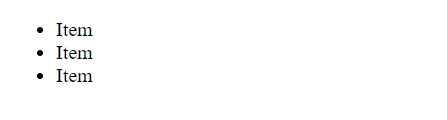
The list items will be marked with bullets (small black circles) by default:
Example:
<ul>
  <li>Item</li>
  <li>Item</li>
  <li>Item</li>
</ul>
Output:
Choose List Item Marker
The CSS list-style-type property is used to define the style of the list item marker. It can have one of the following values:
| Value | Description |
|---|---|
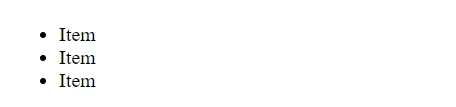
disc |
Sets the list item marker to a bullet (default) |
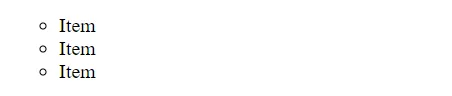
circle |
Sets the list item marker to a circle |
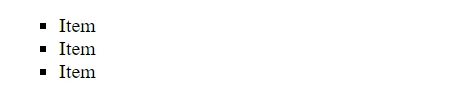
square |
Sets the list item marker to a square |
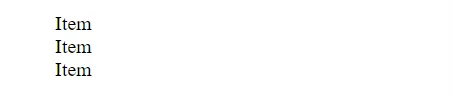
none |
The list items will not be marked |
Disc
<ul style="list-style-type:disc;">
  <li>Item</li>
  <li>Item</li>
  <li>Item</li>
</ul>
Output:
Circle
<ul style="list-style-type:circle;">
  <li>Item</li>
  <li>Item</li>
  <li>Item</li>
</ul>
Output:
Square
<ul style="list-style-type:square;">
  <li>Item</li>
  <li>Item</li>
  <li>Item</li>
</ul>
Output:
None
<ul style="list-style-type:none;">
  <li>Item</li>
  <li>Item</li>
  <li>Item</li>
</ul>
Output:
Nested HTML Lists
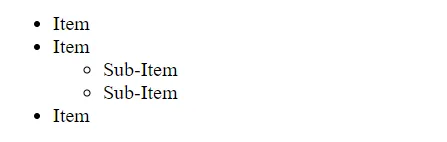
Lists can be nested (list inside list):
<ul>
	<li>Item</li>
	<li>Item
		<ol>
			<li>Sub-Item</li>
			<li>Sub-Item</li>
		</ol>
	</li>
	<li>Item</li>
</ul>
Output:
Horizontal List with CSS
HTML lists can be styled in many different ways with CSS.
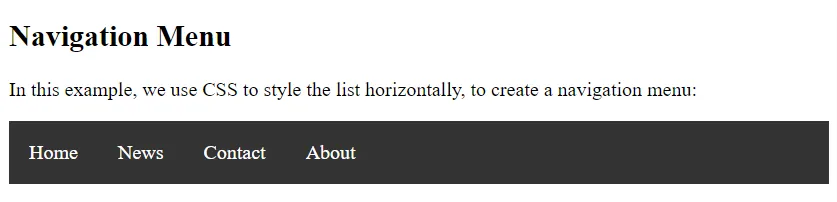
One popular way is to style a list horizontally, to create a navigation menu:
<!DOCTYPE html>
<html>
	<head>
		<style>
			ul {
			  list-style-type: none;
			  margin: 0;
			  padding: 0;
			  overflow: hidden;
			  background-color: #333333;
			}

			li {
			  float: left;
			}

			li a {
			  display: block;
			  color: white;
			  text-align: center;
			  padding: 16px;
			  text-decoration: none;
			}

			li a:hover {
			  background-color: #111111;
			}
		</style>
	</head>
	<body>

		<h2>Navigation Menu</h2>
		<p>In this example, we use CSS to style the list horizontally, to create a navigation menu:</p>

		<ul>
			<li><a href="#home">Home</a></li>
			<li><a href="#news">News</a></li>
			<li><a href="#contact">Contact</a></li>
			<li><a href="#about">About</a></li>
		</ul>

	</body>
</html>
Output: