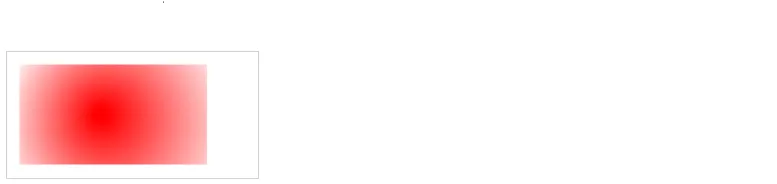
The HTML <canvas> element is used to draw graphics on a web page.
What is HTML Canvas?
The HTML <canvas> element is used to draw graphics, on the fly, via JavaScript.
The <canvas> element is only a container for graphics. You must use JavaScript to actually draw the graphics.
Canvas has several methods for drawing paths, boxes, circles, text, and adding images.
Canvas Examples
A canvas is a rectangular area on an HTML page. By default, a canvas has no border and no content.
The markup looks like this:
<canvas id="myCanvas" width="300" height="100"></canvas>Example of an empty canvas:
<canvas id="myCanvas" width="200" height="100" style="border:1px solid #000000;">
</canvas>Output:

Add JavaScript code
After creating the rectangular canvas area, you must add JavaScript code to do the drawing.
Here are some examples.
Draw a Line
If you want to draw a straight line on the canvas, you can use the following two methods:
-
moveTo(x,y): It is used to define the starting point of the line.
-
lineTo(x,y): It is used to define the ending point of the line.
If you draw a line which starting point is (0,0) and the end point is (200,100), use the stroke method to draw the line.
<script>
	var c = document.getElementById("myCanvas");
	var cctx = c.getContext("2d");
	ctx.moveTo(0,0);
	ctx.lineTo(200,100);
	ctx.stroke();
</script>
Output:

Draw a Circle
If you want to draw a circle on the canvas, you can use the arc() method:
arc(x, y, r, start, stop)To sketch circle on HTML canvas, use one of the ink() methods, like stroke() or fill().
<script>
	var c = document.getElementById("myCanvas");
	var cctx = c.getContext("2d");
	ctx.beginPath();
	ctx.arc(95,50,40,0,2*Math.PI);
	ctx.stroke();
</script>
Output:

Draw a Text
There are property and methods used for drawing text on the canvas.
- font property: It is used to define the font property for the text.
- fillText(text,x,y) method: It is used to draw filled text on the canvas. It looks like bold font.
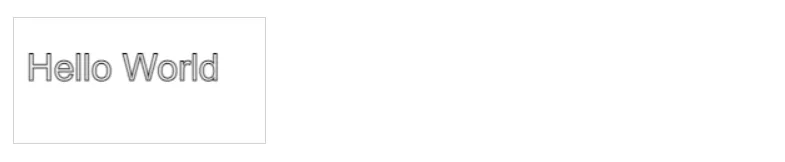
- strokeText(text,x,y) method: It is also used to draw text on the canvas, but the text is unfilled.
Let's see fillText() method example.
<script>
	var c = document.getElementById("myCanvas");
	var cctx = c.getContext("2d");
	ctx.font = "30px Arial";
	ctx.fillText("Hello World",10,50);
</script>
Output:

Let's see strokeText() method example.
<script>
	var c = document.getElementById("myCanvas");
	var cctx = c.getContext("2d");
	ctx.font = "30px Arial";
	ctx.strokeText("Hello World",10,50);
</script>
Output:
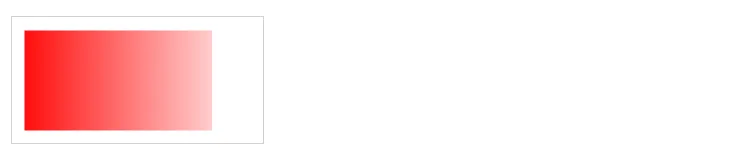
Draw Linear Gradient
<script>
	var c = document.getElementById("myCanvas");
	var ctx = c.getContext("2d");

	// Create gradient
	var grd = ctx.createLinearGradient(0, 0, 200, 0);
	grd.addColorStop(0, "red");
	grd.addColorStop(1, "white");

	// Fill with gradient
	ctx.fillStyle = grd;
	ctx.fillRect(10, 10, 150, 80);
</script>
Output:
Draw Circular Gradient
<script>
	var c = document.getElementById("myCanvas");
	var ctx = c.getContext("2d");

	// Create gradient
	var grd = ctx.createRadialGradient(75, 50, 5, 90, 60, 100);
	grd.addColorStop(0, "red");
	grd.addColorStop(1, "white");

	// Fill with gradient
	ctx.fillStyle = grd;
	ctx.fillRect(10, 10, 150, 80);
</script>
Output: