
HTML Input Types
Here are the different input types you can use in HTML:
<input type="button"><input type="checkbox"><input type="color"><input type="date"><input type="datetime-local"><input type="email"><input type="file"><input type="hidden"><input type="image"><input type="month"><input type="number"><input type="password"><input type="radio"><input type="range"><input type="reset"><input type="search"><input type="submit"><input type="tel"><input type="text"><input type="time"><input type="url"><input type="week">
Input Type Text
<input type="text"> defines a single-line text input field:
<form>
	<label for="fname">First name:</label><br>
	<input type="text"  id="fname"  name="fname"><br>
	<label for="lname">Last name:</label><br>
	<input type="text"  id="lname"  name="lname">
</form>
Output:

Input Type Password
<input type="password"> defines a password field:
<form>
	<label for="username">Username:</label><br>
	<input type="text"  id="username"  name="username"><br>
	<label for="pwd">Password:</label><br>
	<input type="password"  id="pwd"  name="pwd">
</form>
Output:

Input Type Submit
<input type="submit"> defines a button for submitting form data to a form-handler.
The form-handler is typically a server page with a script for processing input data.
The form-handler is specified in the form's action attribute:
<form action="/action_page.php">
	<label for="fname">First name:</label><br>
	<input type="text"  id="fname"  name="fname"  value="John"><br>
	<label for="lname">Last name:</label><br>
	<input type="text"  id="lname"  name="lname"  value="Doe"><br><br>
	<input type="submit"  value="Submit">
</form>
Output:

If you omit the submit button's value attribute, the button will get a default text:
<form action="/action_page.php">
	<label for="fname">First name:</label><br>
	<input type="text"  id="fname"  name="fname"  value="John"><br>
	<label for="lname">Last name:</label><br>
	<input type="text"  id="lname"  name="lname"  value="Doe"><br><br>
	<input type="submit">
</form>
Input Type Reset
<input type="reset"> defines a reset button that will reset all form values to their default values:
<form action="/action_page.php">
	<label for="fname">First name:</label><br>
	<input type="text"  id="fname"  name="fname"  value="John"><br>
	<label for="lname">Last name:</label><br>
	<input type="text"  id="lname"  name="lname"  value="Doe"><br><br>
	<input type="submit"  value="Submit">
	<input type="reset">
</form>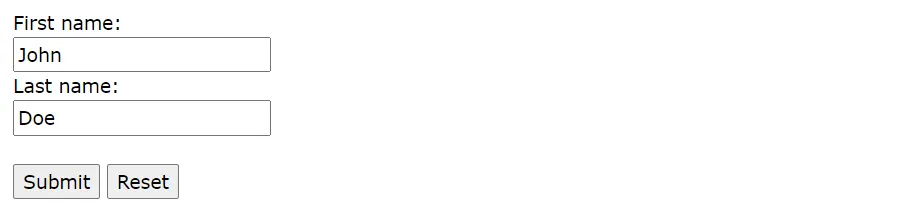
Input Type Radio
<input type="radio"> defines a radio button.
Radio buttons let a user select ONLY ONE of a limited number of choices:
<p>Choose your favorite Web language:</p>
<form>
	<input type="radio"  id="html"  name="fav_language"  value="HTML">
	<label for="html">HTML</label><br>
	<input type="radio"  id="css"  name="fav_language"  value="CSS">
	<label for="css">CSS</label><br>
	<input type="radio"  id="javascript"  name="fav_language"  value="JavaScript">
	<label for="javascript">JavaScript</label>
</form>
Output:

Input Type Checkbox
<input type="checkbox"> defines a checkbox.
Checkboxes let a user select ZERO or MORE options of a limited number of choices.
<form>
	<input type="checkbox"  id="vehicle1"  name="vehicle1"  value="Bike">
	<label for="vehicle1"> I have a bike</label><br>
	<input type="checkbox"  id="vehicle2"  name="vehicle2"  value="Car">
	<label for="vehicle2"> I have a car</label><br>
	<input type="checkbox"  id="vehicle3"  name="vehicle3"  value="Boat">
	<label for="vehicle3"> I have a boat</label>
</form>
Output:

Input Type Button
<input type="button"> defines a button:
<input type="button" onclick="alert('Hello World!')" value="Click Me!">Input Type Color
The <input type="color"> is used for input fields that should contain a color.
Depending on browser support, a color picker can show up in the input field.
<form>
	<label for="favcolor">Select your favorite color:</label>
	<input type="color"  id="favcolor"  name="favcolor">
</form>
Input Type Date
The <input type="date"> is used for input fields that should contain a date.
Depending on browser support, a date picker can show up in the input field.
<form>
<label for="birthday">Birthday:</label>
	<input type="date"  id="birthday"  name="birthday">
</form>
You can also use the min and max attributes to add restrictions to dates:
<form>
	<label for="datemax">Enter a date before 1980-01-01:</label>
	<input type="date"  id="datemax"  name="datemax"  max="1979-12-31"><br><br>
	<label for="datemin">Enter a date after 2000-01-01:</label>
	<input type="date"  id="datemin"  name="datemin"  min="2000-01-02">
</form>
Input Type Datetime-local
The <input type="datetime-local"> specifies a date and time input field, with no time zone.
Depending on browser support, a date picker can show up in the input field.
<form>
	<label for="birthdaytime">Birthday (date and time):</label>
	<input type="datetime-local"  id="birthdaytime"  name="birthdaytime">
</form>
Input Type Email
The <input type="email"> is used for input fields that should contain an e-mail address.
Depending on browser support, the e-mail address can be automatically validated when submitted.
Some smartphones recognize the email type, and add ".com" to the keyboard to match email input.
<form>
	<label for="email">Enter your email:</label>
	<input type="email"  id="email"  name="email">
</form>
Input Type File
The <input type="file"> defines a file-select field and a "Browse" button for file uploads.
<form>
	<label for="myfile">Select a file:</label>
	<input type="file"  id="myfile"  name="myfile">
</form>
Input Type Hidden
The <input type="hidden"> defines a hidden input field (not visible to a user).
A hidden field let web developers include data that cannot be seen or modified by users when a form is submitted.
A hidden field often stores what database record that needs to be updated when the form is submitted.
<form>
	<label for="fname">First name:</label>
	<input type="text"  id="fname"  name="fname"><br><br>
	<input type="hidden"  id="custId"  name="custId"  value="3487">
	<input type="submit"  value="Submit">
</form>
Input Type Month
The <input type="month"> allows the user to select a month and year.
Depending on browser support, a date picker can show up in the input field.
<form>
	<label for="bdaymonth">Birthday (month and year):</label>
	<input type="month"  id="bdaymonth"  name="bdaymonth">
</form>
Input Type Number
The <input type="number"> defines a numeric input field.
You can also set restrictions on what numbers are accepted.
The following example displays a numeric input field, where you can enter a value from 1 to 5:
<form>
	<label for="quantity">Quantity (between 1 and 5):</label>
	<input type="number"  id="quantity"  name="quantity"  min="1"  max="5">
</form>