An HTML file is a text file, so to create an HTML file we can use any text editors.
Text editors are the programs which allow editing in a written text, hence to create a web page we need to write our code in some text editor.
There are various types of text editors available which you can directly download, but for a beginner, the best text editor is Notepad (Windows) or TextEdit (Mac).
After learning the basics, you can easily use other professional text editors like Notepad++, Sublime Text, Vim, Visual Studio Code, etc.
Let's an example.
Step 1: Open Notepad (PC)
Windows 8 or later:
Open the Start Screen (the window symbol at the bottom left on your screen). Type Notepad.
Windows 7 or earlier:
Open Start > Programs > Accessories > Notepad
Step 1: Open TextEdit (Mac)
Open Finder > Applications > TextEdit
Also change some preferences to get the application to save files correctly. In Preferences > Format > choose "Plain Text"
Then under "Open and Save", check the box that says "Display HTML files as HTML code instead of formatted text".
Then open a new document to place the code.
Step 2: Write Some HTML
Write or copy the following HTML code into Notepad:
<!DOCTYPE html>
<html>
	<body>
	<h1>My First Heading</h1>
	<p>My first paragraph.</p>
	</body>
</html>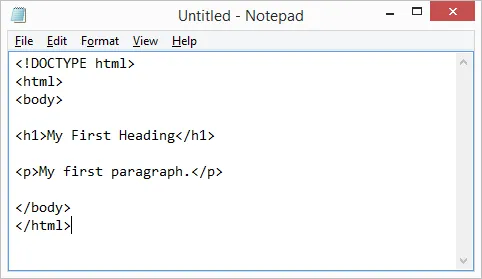
Step 3: Save the HTML Page
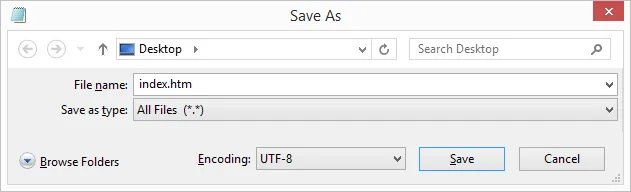
Save the file on your computer. Select File > Save as in the Notepad menu.
Name the file "index.htm" and set the encoding to UTF-8 (which is the preferred encoding for HTML files).
Step 4: View the HTML Page in Your Browser
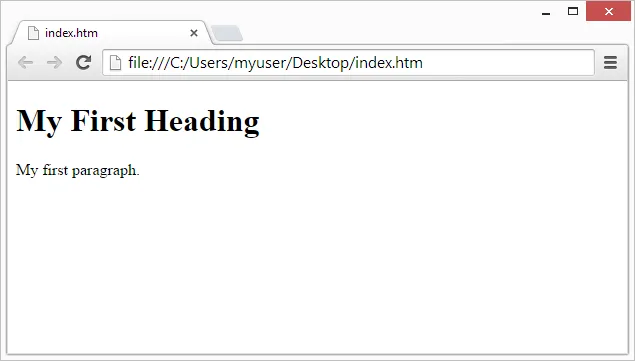
Open the saved HTML file in your favorite browser (double-click on the file, or right-click - and choose "Open with").
The result will look much like this: